
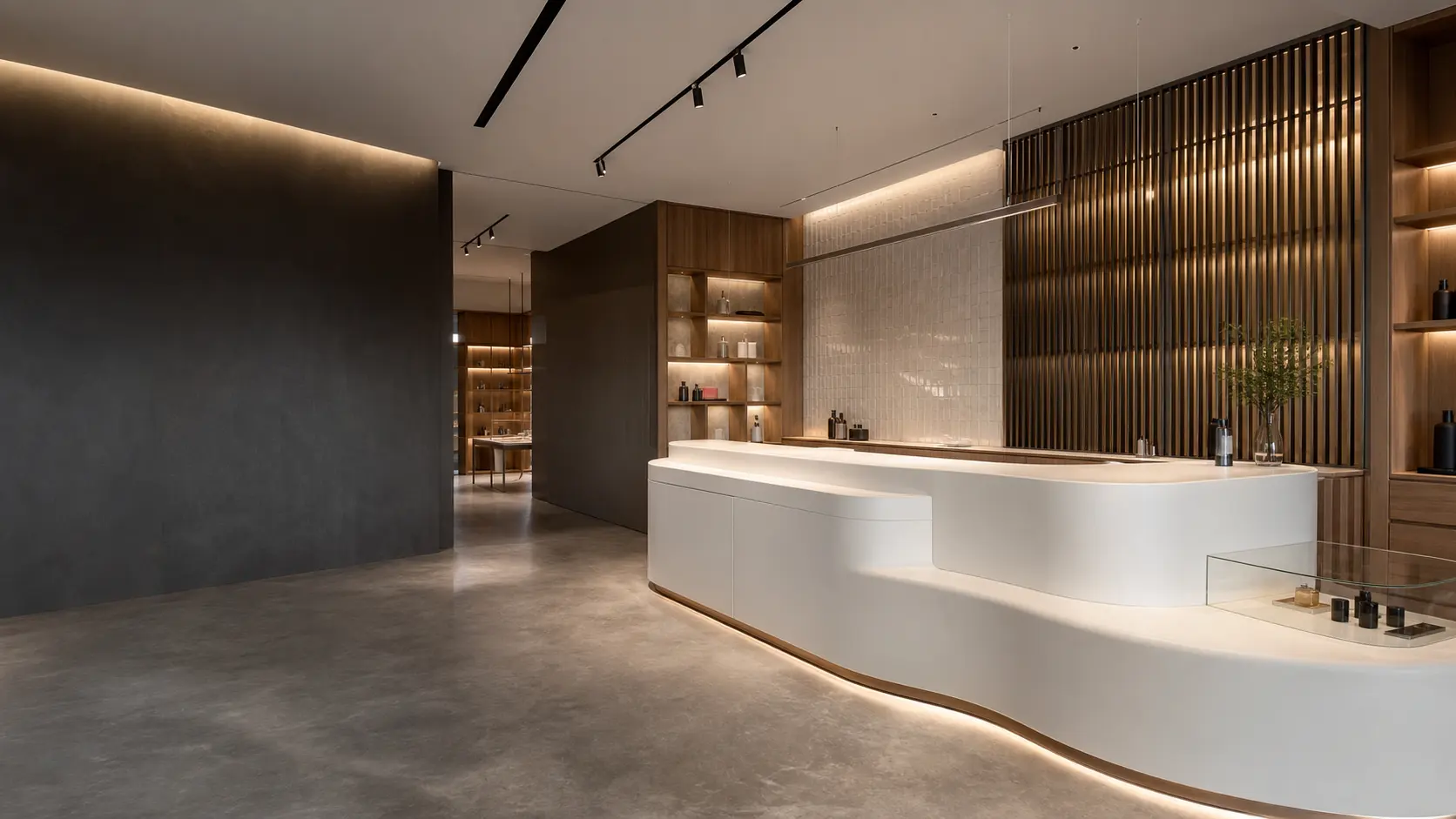
AI-created premium commercial interior showcasing sculptural solid-surface joinery, tile, metalwork and integrated lighting

Showcase

3D VISUALS

Step inside exhibition and residential designs, change perspective and discover their details at your own pace. Choose a model below, then use the quick guide to make the most of your visit.

Concept illustration

The collection

3D project tours.

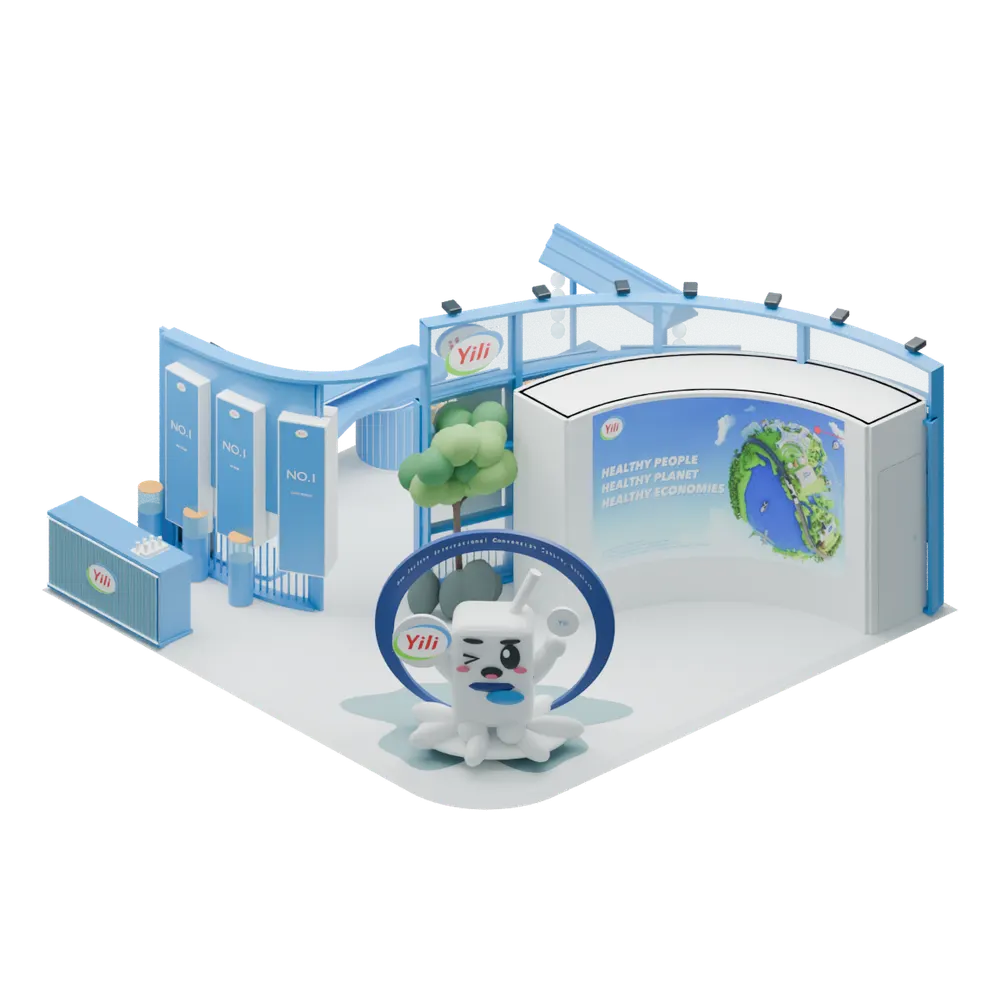
Perspective view of the exhibition stand design, showing display counters, graphics and overhead rings
EXHIBITION STANDS · 3D design model

01 · Exhibition design

EXHIBITION STANDS

Explore an exhibition stand, from its product displays and overhead features to the layout of the space. Rotate the model, choose a standard view or step inside with Walk mode on a desktop.

In Orbit, select a component, then right-click it to hide it, isolate it or show all components.

This is a design visualisation. Some details are simplified.

EXPLORE MODEL IN 3DRead the viewing guide
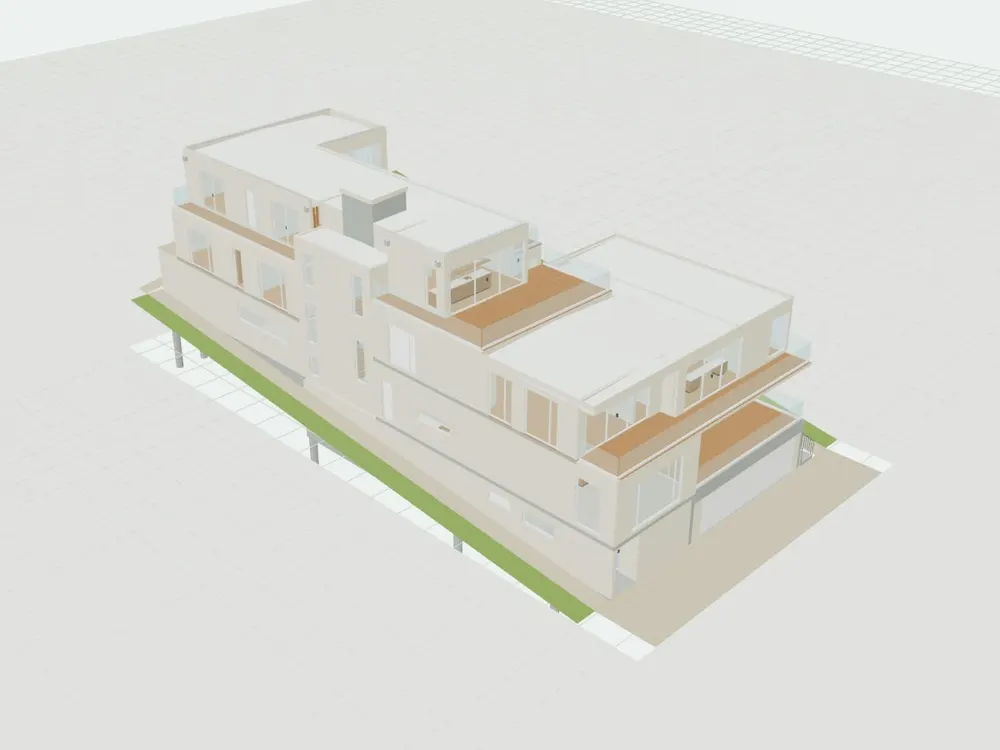
Preview of the Residential Architectural Model
Residential Architectural Model · Architectural design model

02 · Residential architecture

Residential Architectural Model

Explore the building levels, interior spaces and design details of a residential architectural model. Use Orbit to view it from different angles, select a standard view or step inside with Walk mode on a desktop.

This is an in-progress model with editable display assumptions. It illustrates design intent and does not represent a completed project.

EXPLORE MODEL IN 3DRead the viewing guide

More 3D visuals coming soon. Browse all completed projects.

Quick guide

Find your way around.

The viewer opens in Orbit mode. Use the controls below to explore, or check Quick controls inside the viewer for a reminder.

Choose your view

01 · The bigger picture

Orbit

Rotate around the model, zoom in on a feature and pan across the design. Double-click a feature to centre it in your view.

02 · Inside the space

Walk

On a desktop with a mouse and keyboard, select Walk, then click the scene to start. Move the mouse to look around. Press Esc to return to Orbit and use the viewer controls.

03 · Change perspective

Standard views

Choose Top, Front, Rear, Left, Right or Perspective from the bottom toolbar. Home returns to the complete model's default perspective. Reset restores your last selected standard view. Both keep your filters and settings.

Move at your own pace

Mouse

In Orbit, hold the left or middle mouse button and drag to rotate around the model. Drag with the right button to pan, and scroll the mouse wheel to zoom. Double-click to focus on a feature.

Keyboard

In Walk, use W, A, S, D or the arrow keys to move. Hold Shift to move faster or Ctrl to slow down. Press Esc before using other controls. Select Walk and click the scene to start again.

Phone or tablet

In Orbit, drag with one finger to rotate. Use two fingers to pan or pinch to zoom. Tap a view button to change perspective. Walk mode requires a desktop mouse and keyboard.